Back up and restore your server
Every plan has 2 backup slots. A backup saves all your server's files: worlds, plugins and settings.
Make a backup
- In the game panel, open Backups and click Create Backup.
- Give it a name, like
before 1.21 upgrade. - Optional: list files to skip under Ignored Files (one per line, for example
logs) to make it smaller and faster. - Optional: turn on Locked so it can't be deleted by accident or replaced by automatic backups.
- Click Start backup.
You can make up to 2 backups in any 10-minute period.
Backups made while the server is running work fine, but for a big change (version upgrade, new world) stop the server first so everything is saved.
Download a backup
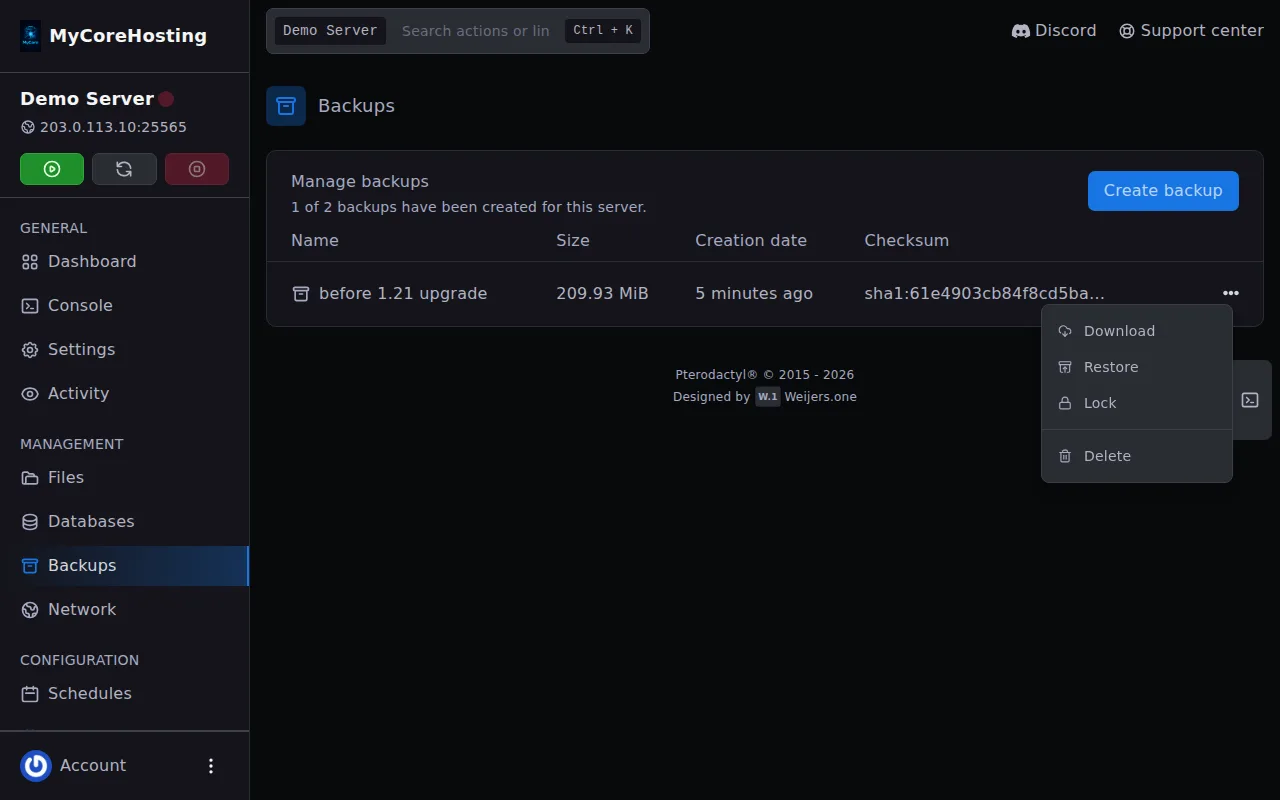
Click ⋯ next to the backup and choose Download. It's a .tar.gz file that opens with 7-Zip (Windows) or by double-clicking (Mac). Keep a copy on your computer for important moments.
Restore a backup
- Click ⋯ next to the backup and choose Restore.
- Tick Delete all files before restoring to get an exact copy of the backup. Leave it unticked to only overwrite files that are in the backup.
- Confirm. The server stops during the restore. Start it again afterwards.
Automatic backups
Create a schedule with a Create backup task (see Schedules). When both slots are full, an automatic backup replaces your oldest unlocked backup, so you always have the latest ones. Manual backups don't do this: delete one first if both slots are full.
Backups don't include your MySQL database. Export it separately (see MySQL databases).
Stuck?
Open a ticket in the client area and tell us what you've tried. We'll point you in the right direction.
Open a ticket