Upload a world
Use any Java Edition world: your own singleplayer save, a map you downloaded, or a world from another server.
1. Find the world on your computer
Singleplayer worlds are in your saves folder:
- Windows: press
Win + R, type%appdata%\.minecraft\saves - macOS:
~/Library/Application Support/minecraft/saves - Linux:
~/.minecraft/saves
Each world is a folder. The right folder has a level.dat file directly inside it.
2. Zip it
Right-click the world folder and compress it to a .zip. Give the folder a simple name without spaces first, like myworld.
3. Upload and unzip
- In the game panel, Stop your server.
- Open Files and upload the zip (up to 100 MB; use SFTP for bigger worlds). You can also use Upload → Upload Folders to send the unzipped folder directly.
- Click ⋯ next to the zip and choose Unarchive. Then delete the zip.
- Open the new folder and check that
level.datis directly inside (not one folder deeper).
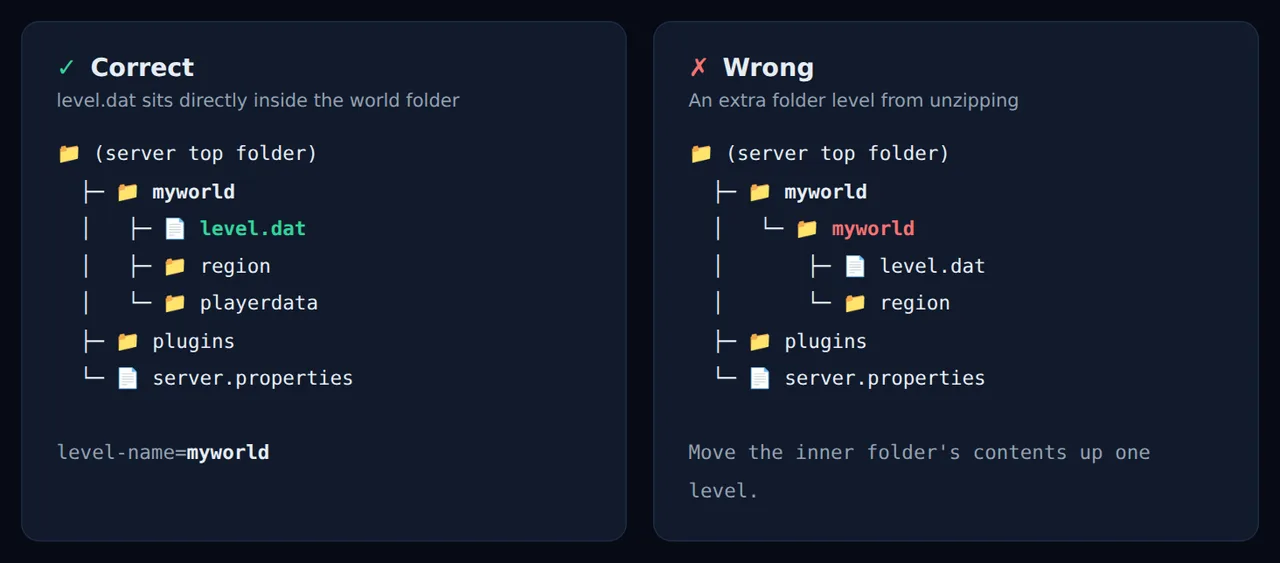
4. Make it the active world
Open server.properties and set level-name to your folder's name:
level-name=myworld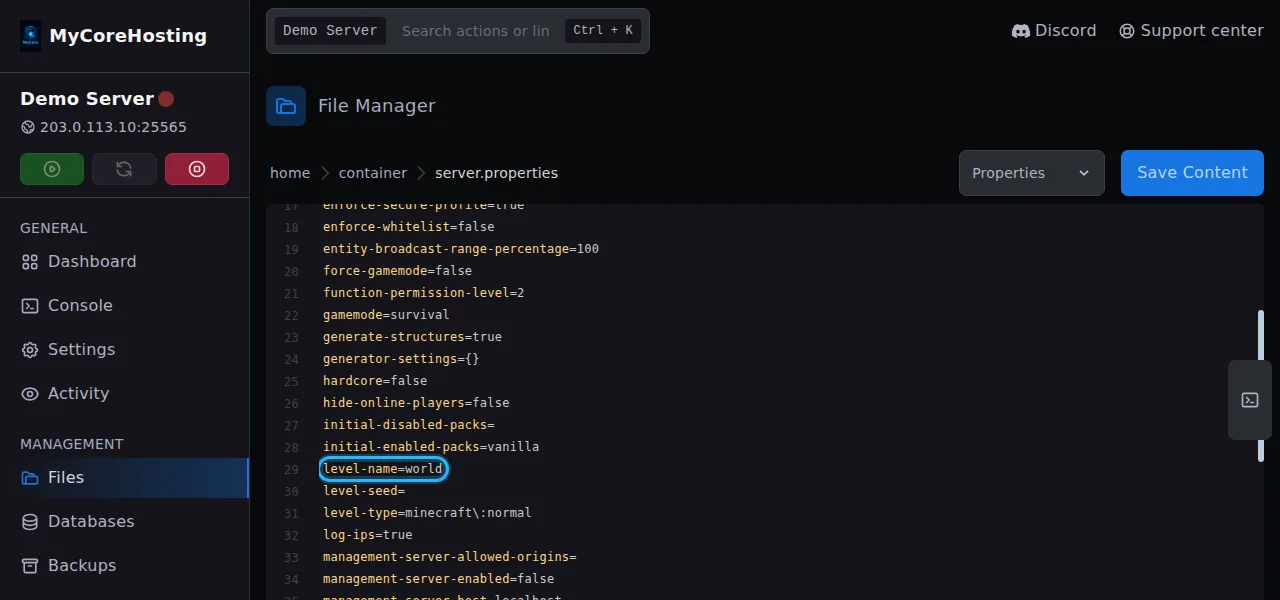
Save, then Start the server.
Your server's Minecraft version must be the same as or newer than the version the world was last played on. Opening a world in an older version can break it. Make a backup first.
Bedrock worlds
Bedrock worlds (.mcworld files) don't work on a Java server directly. Convert them to Java first with a converter like Chunker, then upload the result.
Download your world
To get your world back to your computer, tick the world folders in Files, choose Archive, and download the archive. Or download a backup.
Stuck?
Open a ticket in the client area and tell us what you've tried. We'll point you in the right direction.
Open a ticket