Getting started with your server
Your server is created automatically after payment. Here's how to get into it.
1. Log in to the game panel
Your server is managed in the game panel at panel.mycorehosting.com. Log in with the same email and password as your MyCore billing account. They're kept in sync automatically, so changing your billing password changes your panel password too.
2. Find your server address
Click your server in the panel. Its address is shown under the server name in the sidebar and on the Dashboard page, for example 203.0.113.10:25565. The part after the colon is your port. Players need the full address, including the port.
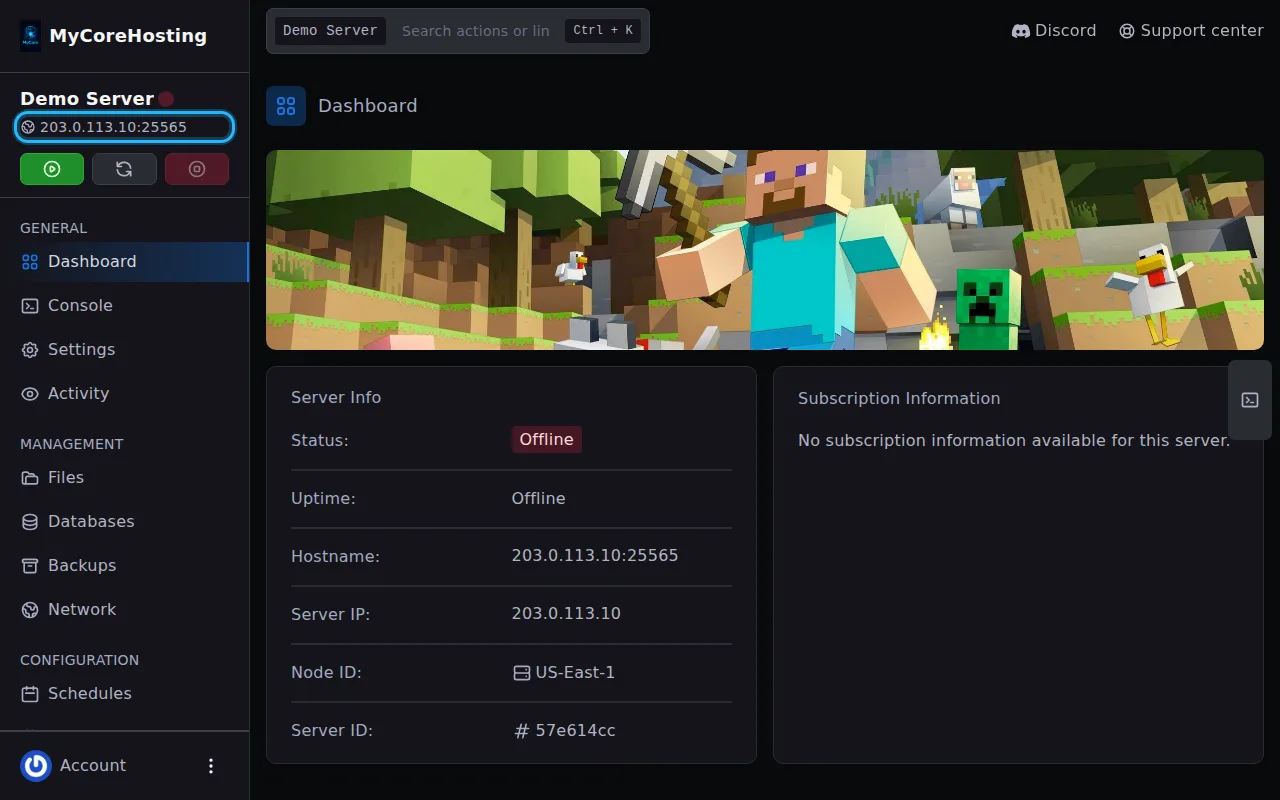
3. Start the server and accept the EULA
Press the green Start button. The first time, the panel asks you to accept the Minecraft EULA. Read it, click I Accept, and the server starts. The first start takes a minute while the world generates. When the console shows Done, the server is ready.
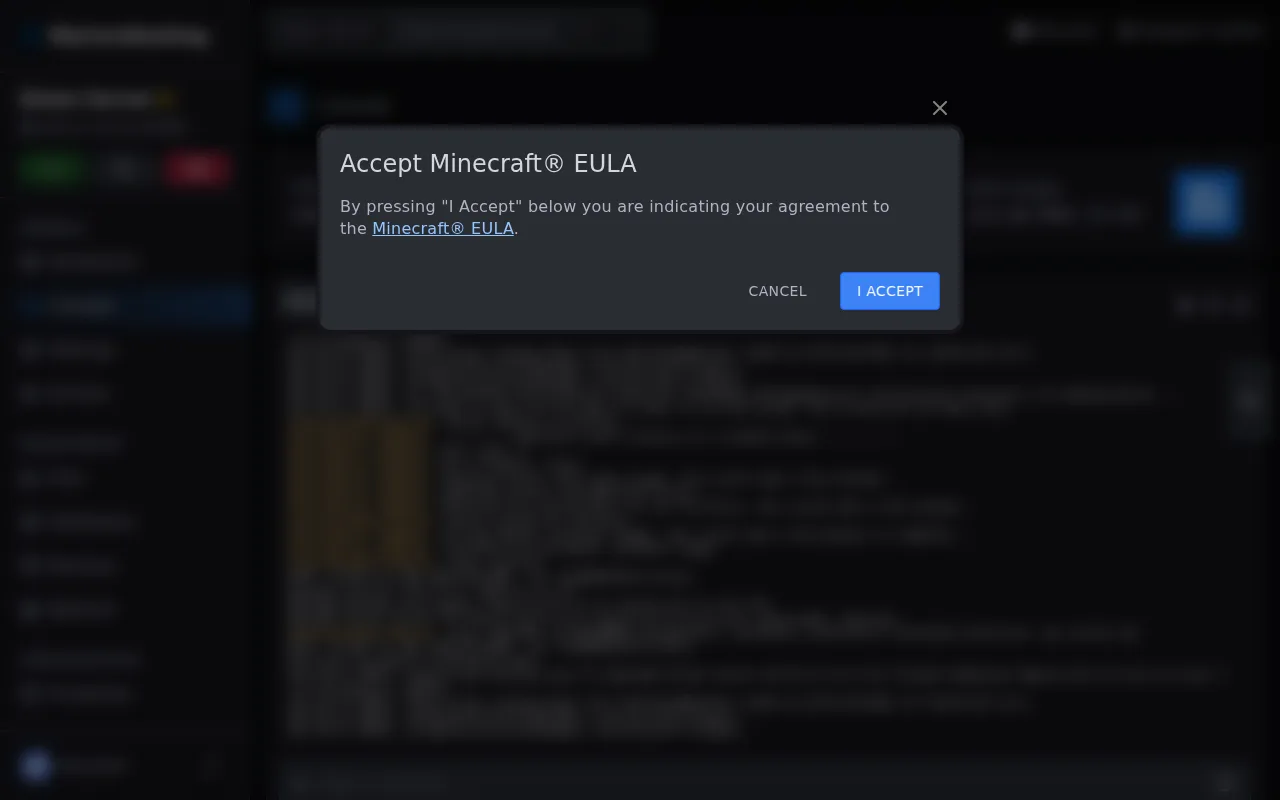
4. Join
In Minecraft Java Edition, go to Multiplayer → Add Server and paste the full address. Make sure your game version matches the server's version (see Change your Minecraft version).
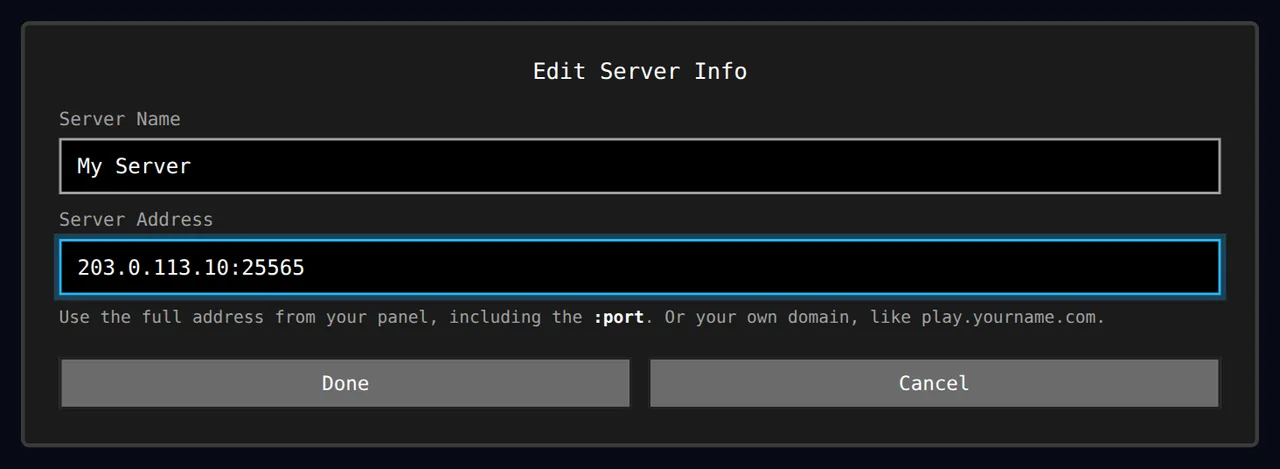
Addresses in these pictures are examples. Your own server's address is shown in your panel.
A quick tour of the panel
- Dashboard: your address, status and resource use.
- Console: start, stop and restart, see the live log and type server commands (without the
/). - Files: edit, upload and download files. See Upload files.
- Databases: your MySQL database. See MySQL databases.
- Schedules: automatic restarts, backups and messages. See Schedules.
- Users: give friends access. See Give friends access.
- Backups: see Backups.
- Startup: Minecraft version, server jar and Java version.
- Settings: SFTP details and reinstalling the server.
Want players to type play.yourname.com instead of an IP? See Use your own domain.
Stuck?
Open a ticket in the client area and tell us what you've tried. We'll point you in the right direction.
Open a ticket